GCP Inform Integration
FAQs
Expand FAQs
1. Why should I enable GCP Billing Exports?
Enabling billing exports allows you to store and analyze cost and usage data using BigQuery. This helps with tracking expenses, optimizing spending, and integrating with other cost management tools.
2. Can I export billing data to multiple projects?
Billing data must be linked to a single BigQuery dataset per billing account. However, you can share access across multiple projects for visibility and analysis.
3. Do I need to use the same location for both Pricing and Detailed Usage Cost exports?
Yes, both pricing and resource exports must be configured to use the same location (US or EU) and preferably the same dataset. Using different locations or datasets will cause integration issues with nOps.
nOps currently supports only USD currency for billing export data. Ensure your GCP billing account is configured to use USD currency for proper integration with the nOps platform.
Overview
Integrate your Google Cloud Billing data with the nOps platform for comprehensive cost tracking and analysis. This integration allows you to visualize and manage GCP spending efficiently using Inform.
Prerequisites
What you'll need:
- A Google Cloud project (or ability to create one)
- A BigQuery dataset (or ability to create one)
- Permissions to modify Cloud Billing settings
- Ability to grant IAM roles to the nOps service account
- Access to enable required APIs in your GCP projects
Optional:
- Organization Policy Administrator role – Only if your organization uses Domain Restricted Sharing
1. Domain Restricted Sharing
If your GCP organization has Domain Restricted Sharing enabled (via the iam.allowedPolicyMemberDomains constraint), you may encounter an error when trying to grant IAM roles to the nOps service account:
ERROR: One or more users named in the policy do not belong to a permitted customer.
This security policy restricts which external identities can be granted IAM roles in your organization. To allow the nOps service account, you need to add the nOps Google Workspace Customer ID to your organization's allowed domains list.
To modify organization policies, you need the Organization Policy Administrator (roles/orgpolicy.policyAdmin) IAM role on the organization. Contact your GCP administrator if you don't have this role.
1.1 Finding the nOps Customer ID
- Go to nOps → Organization Settings → GCP Integration.
- The nOps Customer ID is displayed on this page.
1.2 Adding nOps to Your Allowed Domains
- Console
- gcloud CLI
- Go to IAM & Admin → Organization Policies in the Google Cloud Console.
- Select your Organization from the project/organization selector.
- Search for and select the policy Domain restricted sharing (
iam.allowedPolicyMemberDomains). - Click Manage Policy.
- Under Policy values, click Add value.
- Enter the nOps Customer ID in the format:
C0xxxxxxx(the Customer ID from the nOps integrations UI). - Click Save.
# Get your Organization ID
gcloud organizations list

# Replace with your values
ORGANIZATION_ID="123456789012"  # Use the ID from the command above
NOPS_CUSTOMER_ID="C0xxxxxxx"  # Get this from nOps Integrations UI

# Get current policy
gcloud org-policies describe iam.allowedPolicyMemberDomains \
    --organization=$ORGANIZATION_ID \
    --format=yaml > /tmp/domain-policy.yaml

# Edit the policy to add nOps Customer ID to allowedValues
# Then apply the updated policy
gcloud org-policies set-policy /tmp/domain-policy.yaml
Alternatively, you can update the policy directly:
cat > /tmp/domain-policy.yaml << EOF
name: organizations/$ORGANIZATION_ID/policies/iam.allowedPolicyMemberDomains
spec:
  rules:
  - values:
      allowedValues:
      - is:$NOPS_CUSTOMER_ID
      - is:YOUR_EXISTING_DOMAIN_ID  # Keep your existing allowed values
EOF

gcloud org-policies set-policy /tmp/domain-policy.yaml
If your organization does not have Domain Restricted Sharing enabled, you can skip this section and proceed to check your billing exports below.
2. Check If Billing Exports Are Already Enabled
Before proceeding with the setup, check if your GCP billing exports are already configured:
- Go to the Billing section in the GCP Console.
- Select your billing account from the list.
- Click Billing Export from the left-hand menu.
2.1 Verify Export Status
If billing exports are already enabled, you'll see Project name and Dataset name fields populated for each export type as shown below:
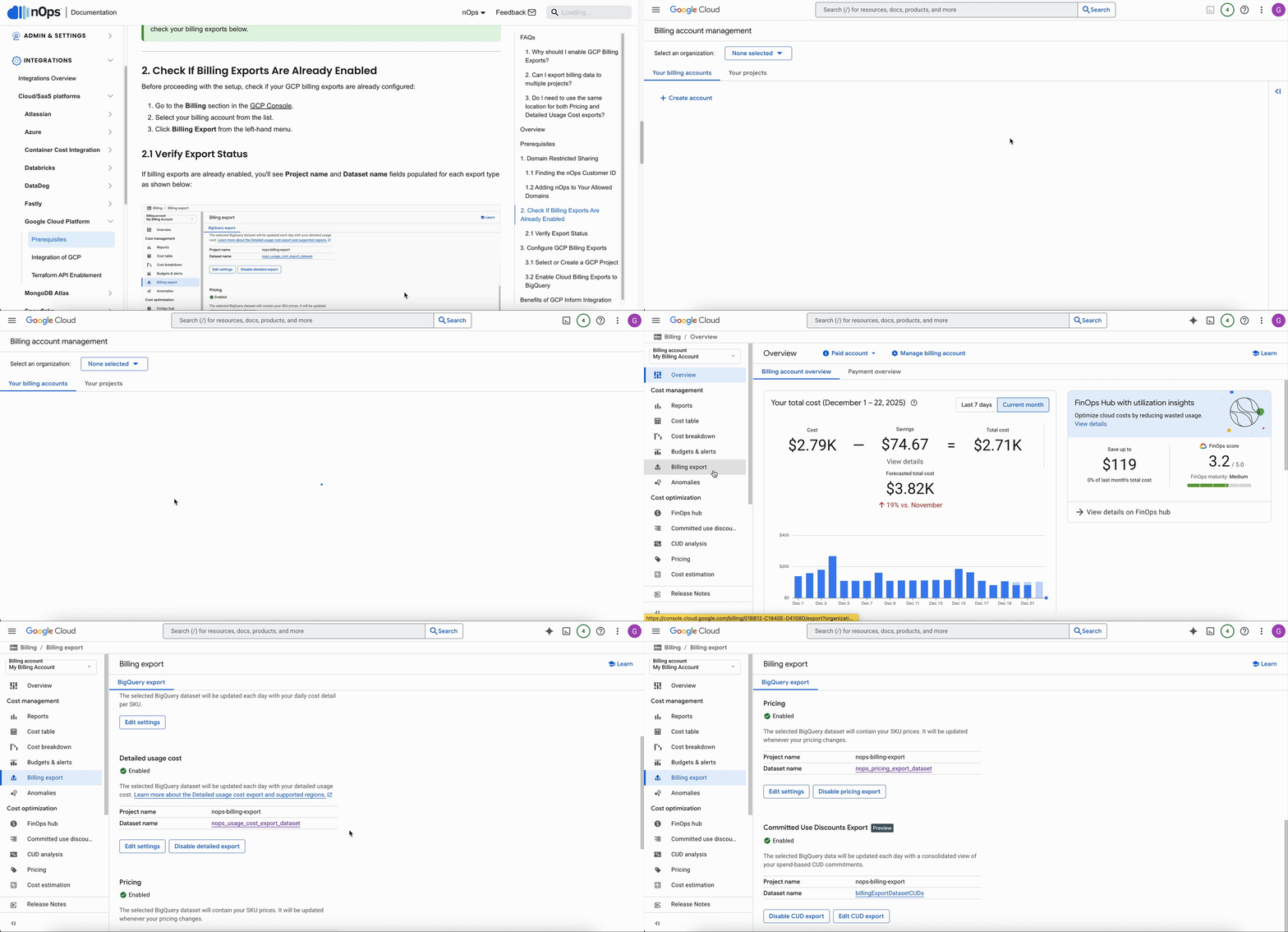
If your billing exports are already configured as shown above, you can skip the configuration steps below and proceed directly to Link GCP Billing Data to nOps in the integration setup guide.
If the exports are not enabled (showing as empty or disabled), continue with the configuration steps below.
3. Configure GCP Billing Exports
3.1 Select or Create a GCP Project
A Google Cloud project is required to store billing data. If managing multiple billing accounts, configure the export for each account separately.
For help setting up the Cloud Billing account, refer to this documentation.
3.2 Enable Cloud Billing Exports to BigQuery
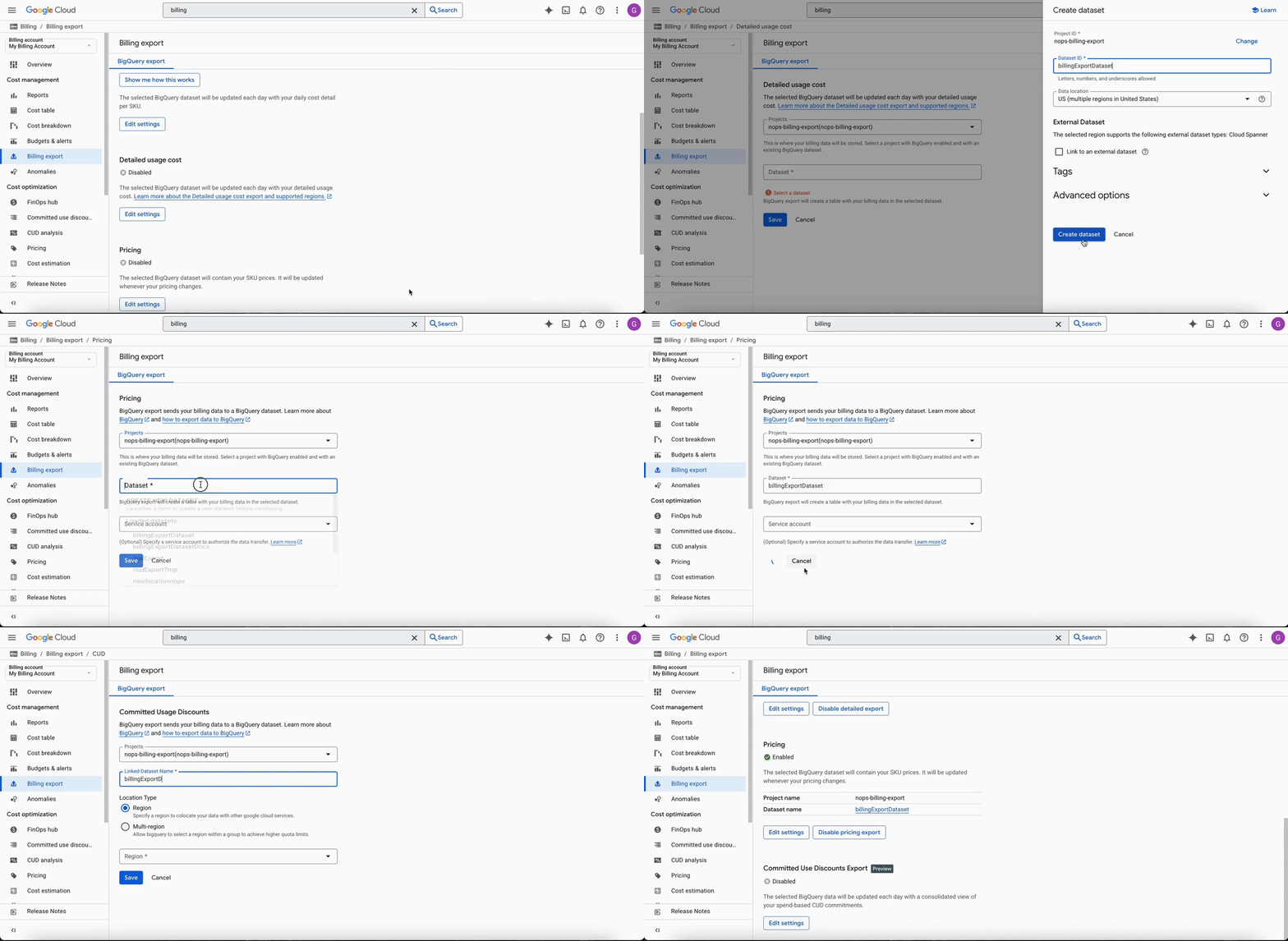
You must enable three specific exports: Detailed Usage Cost, Pricing, and Committed Use Discounts. You can create the BigQuery dataset directly within the first export configuration.
- Go to the Billing section in the GCP Console and select Billing Export from the left-hand menu.
- Configure Detailed Usage Cost Export:
- Click Edit Settings under Detailed Usage Cost.
- Select your Project.
- Create a New Dataset (e.g.,
gcp_billing_exports) or select an existing one. - Choose a location (US or EU) and click Save.
- Configure Pricing Export:
- Click Edit Settings under Pricing.
- Select the same Project and Dataset as above.
- Click Save.
- Configure Committed Use Discounts Export:
- Click Edit Settings under Committed Use Discounts.
- Select the same Project.
- Enter a dataset name (e.g.,
cudsExportDataset) and select the same location (Multi-region US or EU). - Click Save.
When enabling Cloud Billing export to BigQuery for the first time and selecting a multi-region dataset location (EU or US), the export includes billing data retroactively from the start of the previous month. This historical data backfill provides immediate access to recent billing information for analysis.
Important: This retroactive data population occurs only once during the initial setup. If the export is disabled and later re-enabled, or if the dataset is changed, the backfill will not occur again. Billing data will only be available from the date of re-enablement or dataset change onward.
- CUD Export Status: After creating the Committed Use Discounts export, it may initially appear as Disabled. Simply refresh the page, and it should show as Active.
- Location Consistency: All three exports must use the same location (US or EU) and preferably the same project. Using different locations will cause integration issues.
- Table Creation: Each export creates a separate BigQuery table with its own unique Table ID. These tables may take up to 48 hours to be created.
Benefits of GCP Inform Integration
-
Unified Cost Visibility
Track all GCP cloud expenses alongside other cloud providers in the nOps platform. -
Optimized Resource Management
Identify cost-saving opportunities and monitor cloud spend trends. -
Improved Cost Control
Gain actionable insights into your GCP usage with granular billing data.